Connect Visibly AI to Claude
With a custom connector you use Visibly AI right inside the Claude app chat, on the web and in the desktop app: projects, Search Console, analyses and content. No terminal, five steps.
Working on the command line? The Quick Install Guide for Claude Code is the shorter path. The screenshots below show the German interface.
Create an API key in Visibly
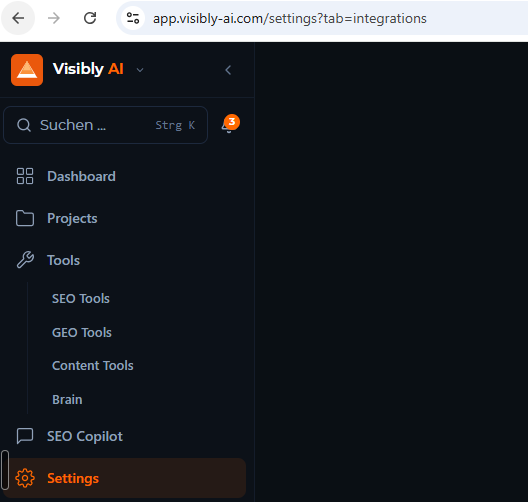
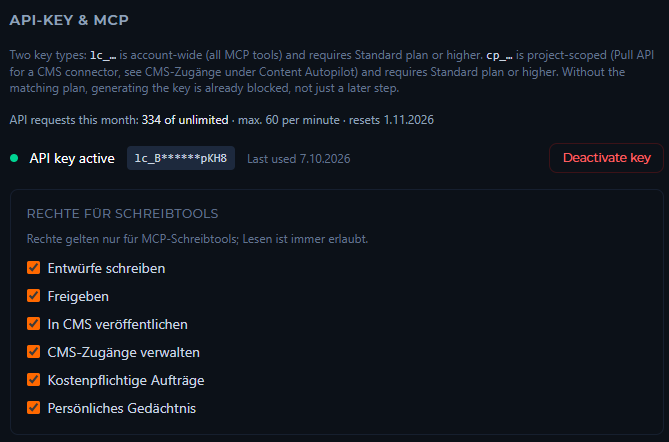
Sign in at app.visibly-ai.com, open Settings on the left and the API Key & MCP section. Create a key there. It starts with lc_ and is shown in full only once: copy it somewhere safe right away.
Below it you decide what Claude may write: drafts, approvals, CMS publishing, CMS connections, paid jobs and personal memory. Reading is always allowed. API access comes with the Standard plan and above.
Open connectors in Claude
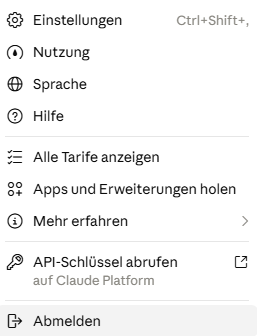
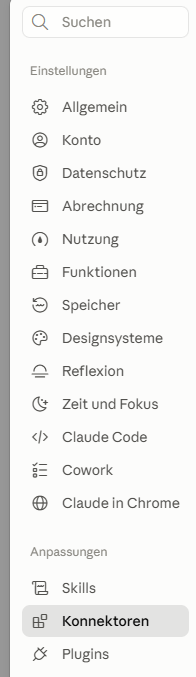
In the Claude app, open the profile menu at the bottom left, then Settings and Connectors in the sidebar.
Add a custom connector
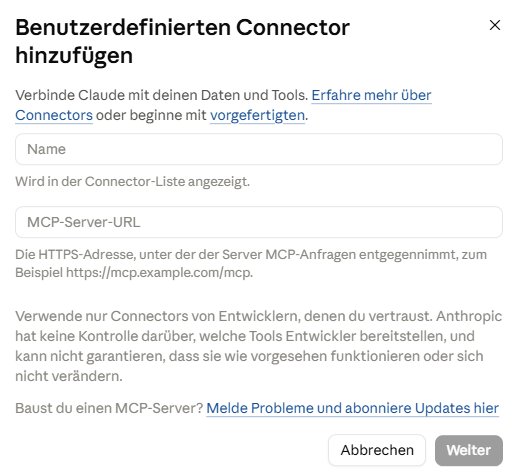
Click Add at the top right and choose Add custom connector. Enter:
- Name:
Visibly AI - MCP server URL:
https://mcp.visibly-ai.com/mcp
Add the key as a header
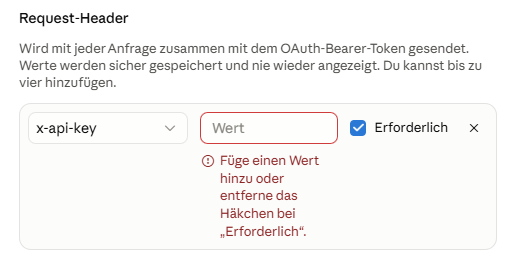
For sign-in choose No authentication: Visibly uses an API key, not OAuth. Then add a header under Request headers:
- Header:
x-api-key - Value: your key from step 1, for example
lc_… - Keep Required checked.
Save. Claude stores the value securely and does not show it again.
Check it and set permissions
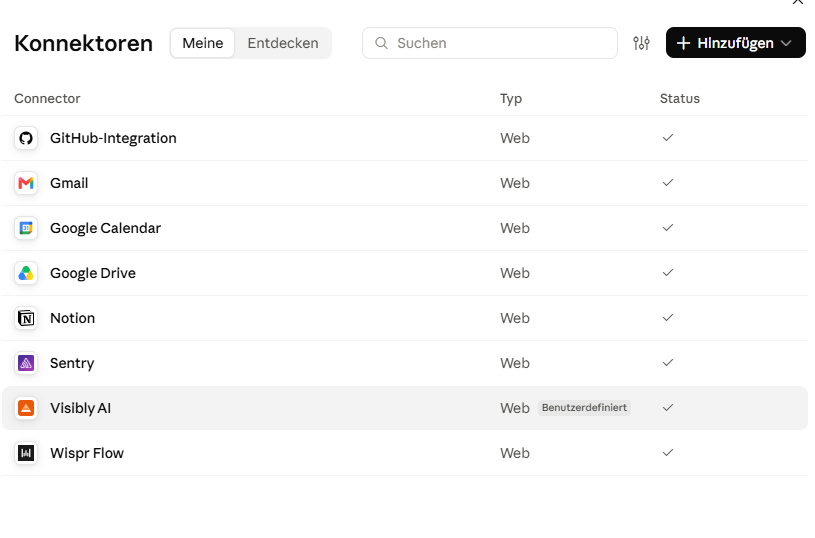
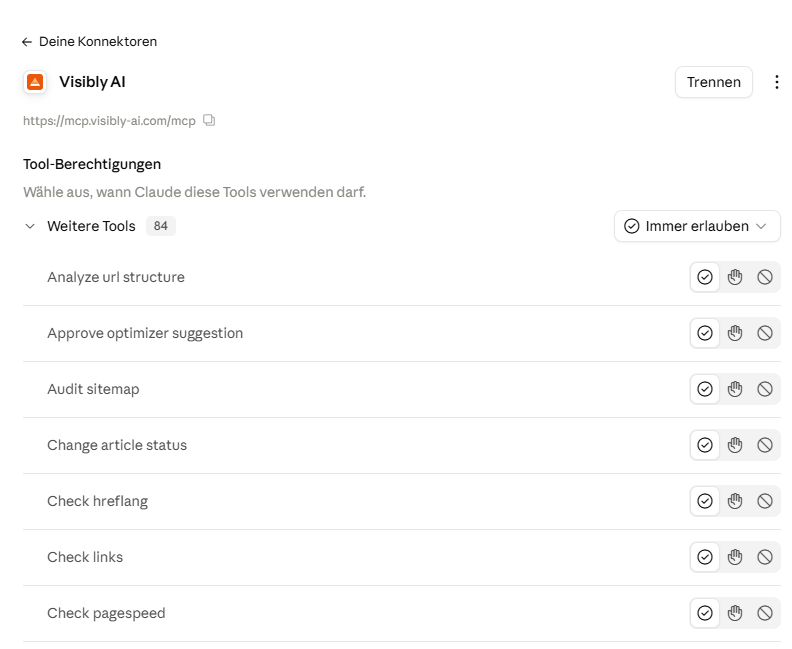
Visibly AI now appears in your connector list. Click it to see every tool and decide per tool whether Claude may always use it, asks first, or never uses it.
Then start a new chat and try, for example:
Show me my Visibly projects and the biggest quick wins from Search Console.If it does not work
- Error 401 or "unauthorized": Check that the header is exactly
x-api-keyand the value starts withlc_, with no spaces before or after. - New key created: A new key replaces the old one immediately. Update it in the connector too.
- A write tool is refused: Tick the matching permission in Visibly under API Key & MCP. Reading needs no permission.
Prefer the terminal: Claude Code
In Claude Code one command is enough. Replace lc_your_key with your key:
claude mcp add --transport http --header "Authorization: Bearer lc_your_key" visiblyai https://mcp.visibly-ai.com/mcpRestart Claude Code, type /mcp and check that visiblyai is connected. More options in the Quick Install Guide, every tool in the MCP documentation.